Atom Speed Dial Pro
Un'estensione Chrome che trasforma ogni nuova scheda in una dashboard personalizzabile per la gestione di segnalibri, link e accesso rapido ai tuoi siti preferiti — con i tuoi dati sincronizzati ovunque tu vada.
A Chrome extension that transforms every new tab into a fully customizable dashboard for managing bookmarks, links, and quick access to your favourite sites — with your data synced wherever you go.
Backup e Sync su Google DriveGoogle Drive Backup & Sync
Sincronizza i tuoi dati tra più computer in tempo reale e mantieni backup automatici delle ultime 5 versioni. Non perdere mai i tuoi segnalibri.
Sync your data across multiple computers in real time and keep automatic backups of the last 5 versions. Never lose your bookmarks.
Profili MultipliMultiple Profiles
Crea dataset separati per lavoro e vita privata, ognuno con i propri gruppi e segnalibri, e passa dall'uno all'altro in un clic.
Create separate datasets for work and personal life, each with its own groups and bookmarks, and switch between them in one click.
Gruppi MultipliMultiple Groups
Crea quanti gruppi vuoi, ognuno indipendente, per organizzare i tuoi link per categoria.
Create as many groups as you like, each independent, to organise your links by category.
Template VisiviVisual Templates
Scegli tra i template Glass e Compact, e personalizza il layout a griglia di ogni gruppo, da 1×1 a 3×3.
Choose between the Glass and Compact templates, and customise the grid layout of each group, from 1×1 to 3×3.
Primi passi
Getting started
Atom Speed Dial Pro si installa come estensione Chrome e diventa attiva immediatamente su ogni nuova scheda.
Atom Speed Dial Pro installs as a Chrome extension and activates immediately on every new tab.
Installa dal Chrome Web Store
Install from Chrome Web Store
Clicca su "Aggiungi a Chrome" e conferma le autorizzazioni richieste.
Click "Add to Chrome" and confirm the required permissions.
Installa su Chrome — GratisInstall on Chrome — FreeApri una nuova scheda
Open a new tab
La dashboard Atom Speed Dial Pro si apre automaticamente al posto della pagina di default di Chrome.
The Atom Speed Dial Pro dashboard opens automatically in place of Chrome's default new tab page.
Crea il tuo primo gruppo
Create your first group
Usa il FAB (pulsante ⚡ in basso a destra) per aggiungere un gruppo e iniziare ad organizzare i tuoi link.
Use the FAB (⚡ button at bottom right) to add a group and start organising your links.
Scegli il tuo tema
Pick your theme
Apri Settings per selezionare uno dei 4 temi predefiniti, scegliere la lingua e personalizzare il layout.
Open Settings to select one of the 4 built-in themes, choose your language, and customise the layout.
Gestione Gruppi (Tab)
Group Management (Tabs)
I gruppi sono le schede visibili nell'header della dashboard. Ogni gruppo contiene segnalibri o sottogruppi. Puoi averne quanti vuoi.
Groups are the tabs visible in the dashboard header. Each group contains bookmarks or subgroups. You can have as many as you like.
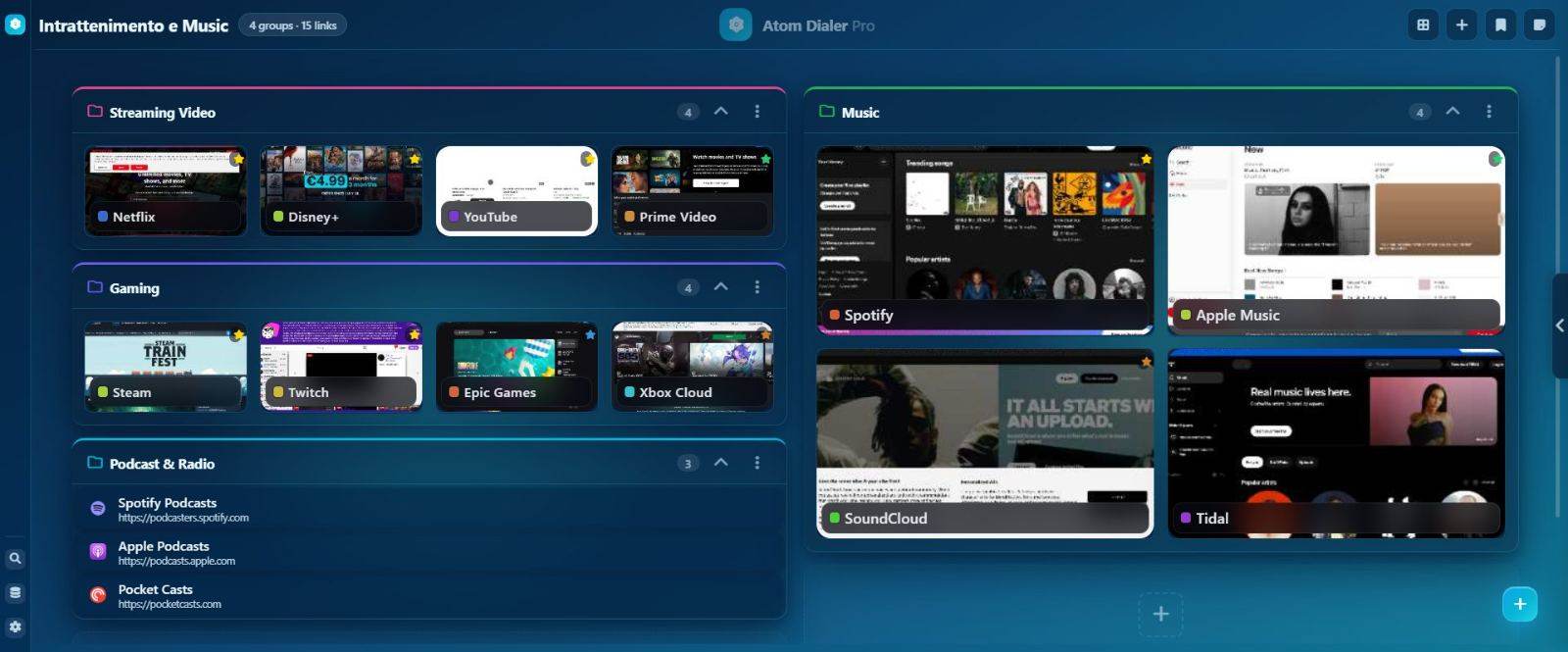
Crea, rinomina, duplica
Create, rename, duplicate
Crea un nuovo gruppo dal FAB o dal pulsante "+". Fai doppio clic sul nome per rinominarlo. Dal menu contestuale del tab puoi duplicarlo con tutti i suoi segnalibri.
Create a new group from the FAB or the "+" button. Double-click the name to rename it. From the tab's context menu you can duplicate it with all its bookmarks.
Colore personalizzato
Custom colour
Assegna un colore ad ogni gruppo dal color-picker integrato. Il colore appare come indicatore sul tab e come accent nelle card del gruppo.
Assign a colour to each group from the built-in colour picker. The colour appears as an indicator on the tab and as an accent in the group's cards.
Overflow "•••"
Overflow "•••"
Quando i tab sono troppi per la larghezza dello schermo, il pulsante "•••" apre un dropdown con tutti i gruppi disponibili.
When there are too many tabs for the screen width, the "•••" button opens a dropdown listing all available groups.
Cancella gruppo
Delete group
La cancellazione chiede conferma. I segnalibri contenuti vengono eliminati insieme al gruppo.
Deletion asks for confirmation. Bookmarks inside the group are removed along with it.
Gestione Sottogruppi
Subgroup Management
I sottogruppi dividono un gruppo in sezioni denominate. Ogni sottogruppo ha layout, dimensione item e template indipendenti.
Subgroups divide a group into named sections. Each subgroup has its own independent layout, item size and template.
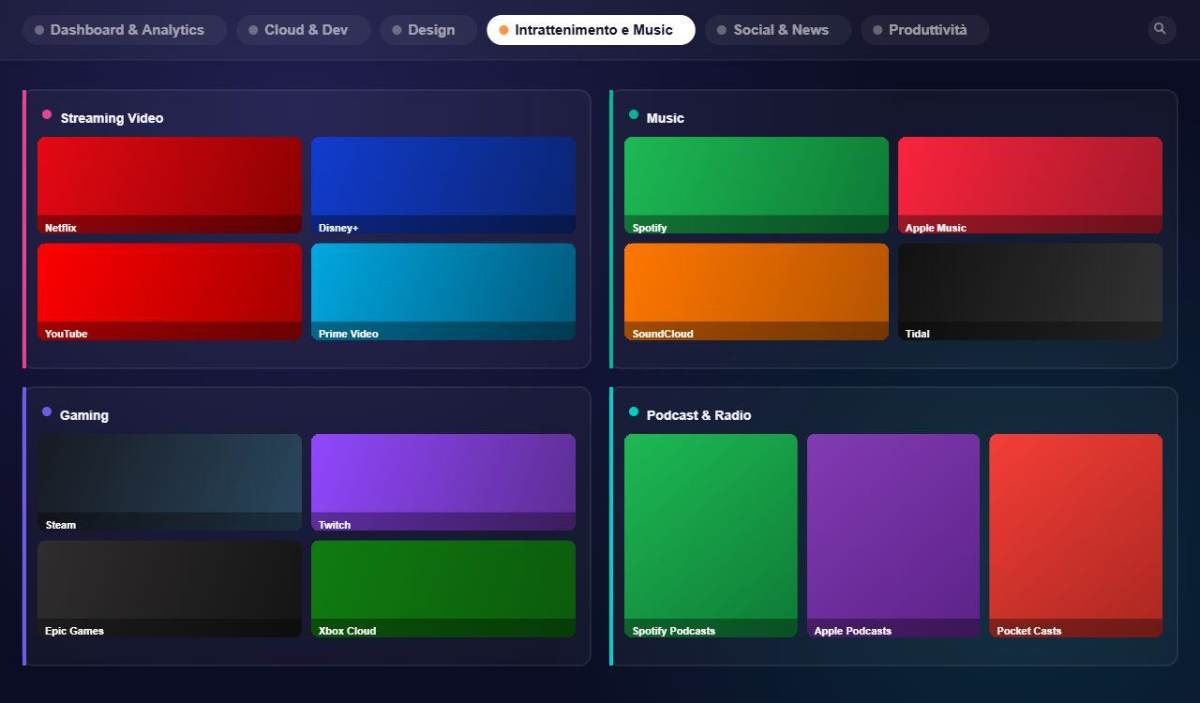
Layout griglia configurabile
Configurable grid layout
Scegli tra 9 layout: 1×1, 1×2, 1×3, 1×4, 2×1, 2×2, 2×3, 3×2, 3×3. Il layout si applica al gruppo che li contiene.
Choose from 9 layouts: 1×1, 1×2, 1×3, 1×4, 2×1, 2×2, 2×3, 3×2, 3×3. The layout applies to the group containing them.
View mode: Griglia o Lista
View mode: Grid or List
Ogni sottogruppo può mostrare i segnalibri in griglia con thumbnail o in lista compatta. Cambiabile dal menu contestuale del sottogruppo.
Each subgroup can display bookmarks in a thumbnail grid or a compact list. Changeable from the subgroup's context menu.
Dimensione item: S / M / L
Item size: S / M / L
Tre taglie disponibili per le card: Small (compatte), Medium (default), Large (card grandi con più spazio per il titolo).
Three card sizes available: Small (compact), Medium (default), Large (bigger cards with more title space).
Estrai in nuovo tab
Extract to new tab
Dal menu contestuale del sottogruppo puoi estrarlo creando automaticamente un nuovo gruppo con i suoi segnalibri.
From the subgroup's context menu you can extract it, automatically creating a new group with its bookmarks.
Auto-creazione subgruppo "Main"
Auto-creation of "Main" subgroup
Quando aggiungi il primo sottogruppo a un gruppo "piatto", i segnalibri esistenti vengono raccolti automaticamente in un subgruppo "Main".
When you add the first subgroup to a "flat" group, existing bookmarks are automatically collected into a "Main" subgroup.
Gestione Segnalibri
Bookmark Management
I segnalibri sono i link salvati, visualizzati come card con thumbnail visiva, favicon e titolo.
Bookmarks are your saved links, displayed as cards with a visual thumbnail, favicon and title.
Aggiungi segnalibro
Add bookmark
Dal FAB → "Add Bookmark" oppure dall'icona + nel header. Il form chiede: titolo, URL, gruppo di destinazione e icona custom opzionale.
From FAB → "Add Bookmark" or the + icon in the header. The form asks for: title, URL, destination group, and optional custom icon.
Modifica e cancella
Edit and delete
Tasto destro sulla card per aprire il context menu con: Edit, Delete, Open in New Tab, Copy URL.
Right-click a card to open the context menu: Edit, Delete, Open in New Tab, Copy URL.
Apri nella scheda corrente o nuova
Open in current or new tab
Click normale → apre nella scheda corrente. Ctrl+Click → apre in una nuova scheda.
Normal click → opens in current tab. Ctrl+Click → opens in a new tab.
Tracciamento visite
Visit tracking
Ogni click incrementa il contatore visite e aggiorna il timestamp "ultimo accesso". I dati alimentano la Home Tab.
Every click increments the visit counter and updates the "last visited" timestamp. This data feeds the Home Tab.
Profili Multipli
Multiple Profiles
Crea dataset separati — ad esempio lavoro e personale — ognuno con i propri gruppi e segnalibri, e passa dall'uno all'altro dalle impostazioni.
Create separate datasets — for example work and personal — each with its own groups and bookmarks, and switch between them from Settings.
Crea un nuovo profilo
Create a new profile
Da Settings puoi creare un profilo vuoto oppure a partire dai dati del profilo corrente.
From Settings you can create an empty profile or one seeded from the current profile's data.
Cambia profilo attivo
Switch active profile
Seleziona il profilo attivo dalle impostazioni: gruppi, sottogruppi e segnalibri sono completamente indipendenti tra profili.
Select the active profile from Settings: groups, subgroups and bookmarks are completely independent across profiles.
Backup su Drive con tutti i profili
Drive backup includes all profiles
Ogni backup su Google Drive include TUTTI i profili in un unico bundle, così non perdi nessun dataset.
Every Google Drive backup bundles ALL profiles together, so no dataset is left behind.
Home Tab Intelligente
Smart Home Tab
Tab speciale che registra automaticamente i segnalibri che visiti di più e li mostra ordinati per frequenza, raggruppati per origine.
A special tab that automatically records your most visited bookmarks and shows them sorted by frequency, grouped by their origin.
Ordinamento per frequenza
Frequency sorting
I link più visitati appaiono per primi. Il ranking si aggiorna automaticamente ad ogni click.
Most visited links appear first. The ranking updates automatically with each click.
Item pinnati
Pinned items
Configura quanti segnalibri restano fissi in cima indipendentemente dalla frequenza. Imposta il numero da Settings → Home Tab.
Configure how many bookmarks stay pinned at the top regardless of frequency. Set the number in Settings → Home Tab.
Cleanup automatico
Automatic cleanup
Una volta al giorno, i link non visitati da oltre N giorni vengono rimossi automaticamente. Configura N da Settings.
Once a day, links not visited in over N days are automatically removed. Configure N in Settings.
Ricerca Unificata
Unified Search
Un'unica barra di ricerca interroga simultaneamente i tuoi segnalibri, i segnalibri nativi di Chrome e le schede chiuse di recente.
A single search bar simultaneously queries your bookmarks, Chrome's native bookmarks and recently closed tabs.
Attivazione rapida
Quick activation
Clicca sull'icona lente nell'header oppure premi Ctrl+K per aprire il modal di ricerca.
Click the magnifier icon in the header or press Ctrl+K to open the search modal.
3 fonti di dati
3 data sources
I risultati sono categorizzati per fonte: I tuoi segnalibri (titolo + URL), Chrome Bookmarks nativi e Schede recenti (sessioni chiuse).
Results are categorised by source: Your bookmarks (title + URL), Chrome Bookmarks (native) and Recent Tabs (closed sessions).
Highlighting e navigazione
Highlighting and navigation
Il termine cercato viene evidenziato nei risultati. Click su un tuo segnalibro → naviga al gruppo e lo seleziona visivamente. Click su Chrome/recente → apre direttamente l'URL.
The search term is highlighted in results. Click on one of your bookmarks → navigates to the group and visually highlights it. Click on Chrome/recent → opens the URL directly.
Sidebar — Accesso Rapido
Sidebar — Quick Access
Pannello laterale destro collassabile che mostra le schede chiuse di recente e la cronologia Chrome, sempre a portata di mano.
A collapsible right-side panel showing recently closed tabs and Chrome history, always within reach.
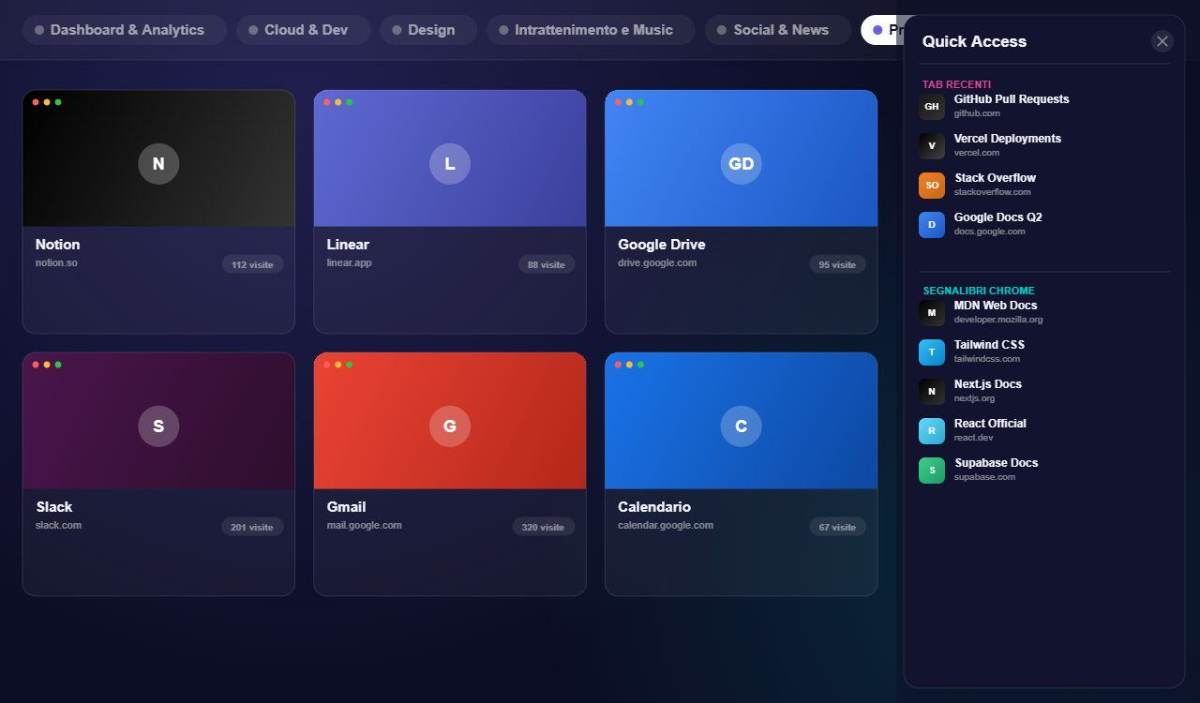
Schede chiuse di recente
Recently closed tabs
Mostra fino a 15 sessioni chiuse con titolo, URL e favicon. Click per riaprire la scheda.
Shows up to 15 closed sessions with title, URL and favicon. Click to reopen the tab.
Cronologia Chrome
Chrome History
Ultimi 3 giorni di navigazione, max 500 risultati, raggruppati per giorno con orario di visita.
Last 3 days of browsing history, max 500 results, grouped by day with visit time.
Apertura hover o click
Hover or click to open
La sidebar si attiva passando il mouse sulla linguetta destra o cliccandola. Si chiude automaticamente dopo 300ms dal mouseleave.
The sidebar activates on hover or click on the right tab. It closes automatically 300ms after the mouseleave.
Speed Dial FAB
Speed Dial FAB
Il pulsante ⚡ in basso a destra è il centro di controllo del gruppo attivo. Espande un menu radiale con tutte le azioni principali.
The ⚡ button at bottom right is the control centre for the active group. It expands into a radial menu with all key actions.
Add Bookmark
Apre il form per aggiungere un nuovo segnalibro al gruppo corrente.
Opens the form to add a new bookmark to the current group.
Add Subgroup
Crea un nuovo sottogruppo nel gruppo attivo.
Creates a new subgroup in the active group.
Change Layout
Sceglie il layout griglia dei sottogruppi (1×1 → 3×3).
Chooses the subgroup grid layout (1×1 → 3×3).
Change Template
Alterna tra template Glass e Compact per il gruppo.
Toggles between Glass and Compact template for the group.
Rename Tab
Rinomina il gruppo corrente.
Renames the current group.
Duplicate Group
Crea una copia del gruppo con tutti i suoi segnalibri.
Creates a copy of the group with all its bookmarks.
Delete Tab
Elimina il gruppo corrente (con conferma).
Deletes the current group (with confirmation).
Scorciatoie da Tastiera
Keyboard Shortcuts
Usa le scorciatoie per navigare e controllare Atom Speed Dial Pro senza alzare le mani dalla tastiera.
Use shortcuts to navigate and control Atom Speed Dial Pro without lifting your hands from the keyboard.
Drag & Drop
Drag & Drop
Riorganizza tutto con un semplice trascinamento. I cambiamenti vengono salvati automaticamente.
Reorganise everything with a simple drag. Changes are saved automatically.
Riordina gruppi (tab)
Reorder groups (tabs)
Trascina le intestazioni dei tab nell'header per cambiare l'ordine dei gruppi.
Drag the tab headers in the header bar to change the group order.
Riordina sottogruppi
Reorder subgroups
Trascina l'header di un sottogruppo per spostarlo nella griglia dei sottogruppi.
Drag a subgroup header to reposition it within the subgroup grid.
Riordina segnalibri
Reorder bookmarks
Trascina una card segnalibro per spostarla all'interno del sottogruppo o tra sottogruppi diversi.
Drag a bookmark card to move it within the subgroup or across different subgroups.
Popup Toolbar
Toolbar Popup
Clicca sull'icona  nella barra degli strumenti di Chrome per salvare rapidamente la pagina corrente senza aprire una nuova scheda.
Click the icon in Chrome's toolbar to quickly save the current page without opening a new tab.
Salva pagina corrente
Save current page
Il popup mostra titolo, URL e favicon della scheda attiva. Seleziona il gruppo di destinazione e clicca "Salva". Se ci sono più gruppi disponibili, si apre una sublista con tutti i gruppi per posizionare il link in quello corretto.
The popup shows the active tab's title, URL and favicon. Select the destination group and click "Save". If multiple groups are available, a sub-list opens showing all of them so you can place the link in the right one.
Crea nuovo gruppo dal popup
Create new group from popup
Puoi creare un nuovo gruppo direttamente dalla lista del popup, senza dover aprire la dashboard.
You can create a new group directly from the popup list, without opening the dashboard.
Apri Dashboard
Open Dashboard
Il pulsante "Open Dashboard" apre la pagina Nuova Scheda di Atom Speed Dial Pro nella scheda corrente.
The "Open Dashboard" button opens the Atom Speed Dial Pro New Tab page in the current tab.
nella barra degli strumenti di Chrome.Click the icon in Chrome's toolbar.4 Temi Integrati
4 Built-in Themes
Ogni tema cambia istantaneamente la palette colori dell'intera interfaccia. Selezionabile da Settings → Aspetto.
Each theme instantly changes the entire interface colour palette. Selectable from Settings → Appearance.
Template Visivi: Glass e Compact
Visual Templates: Glass and Compact
Due template cambiano il modo in cui i segnalibri vengono visualizzati. Applicabili a livello globale, di gruppo o di singolo sottogruppo.
Two templates change how bookmarks are displayed. Applicable globally, per group, or per individual subgroup.
Glass
Card con thumbnail 16:9, titolo e effetto glassmorphism. Ideale per una navigazione visiva rapida dei siti.
Cards with 16:9 thumbnail, title and glassmorphism effect. Ideal for quick visual navigation of sites.
Compact
Lista compatta riga per riga con favicon, titolo e URL. Perfetto per gruppi con molti segnalibri in poco spazio.
Compact row-by-row list with favicon, title and URL. Perfect for groups with many bookmarks in a small space.
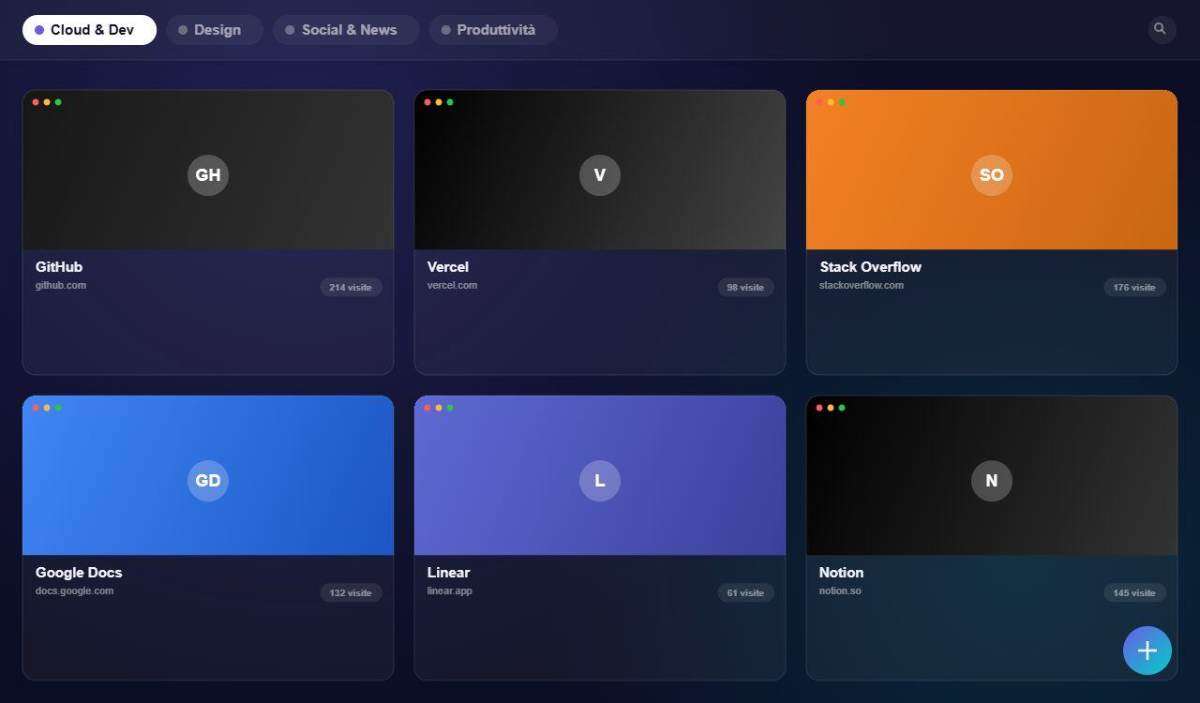
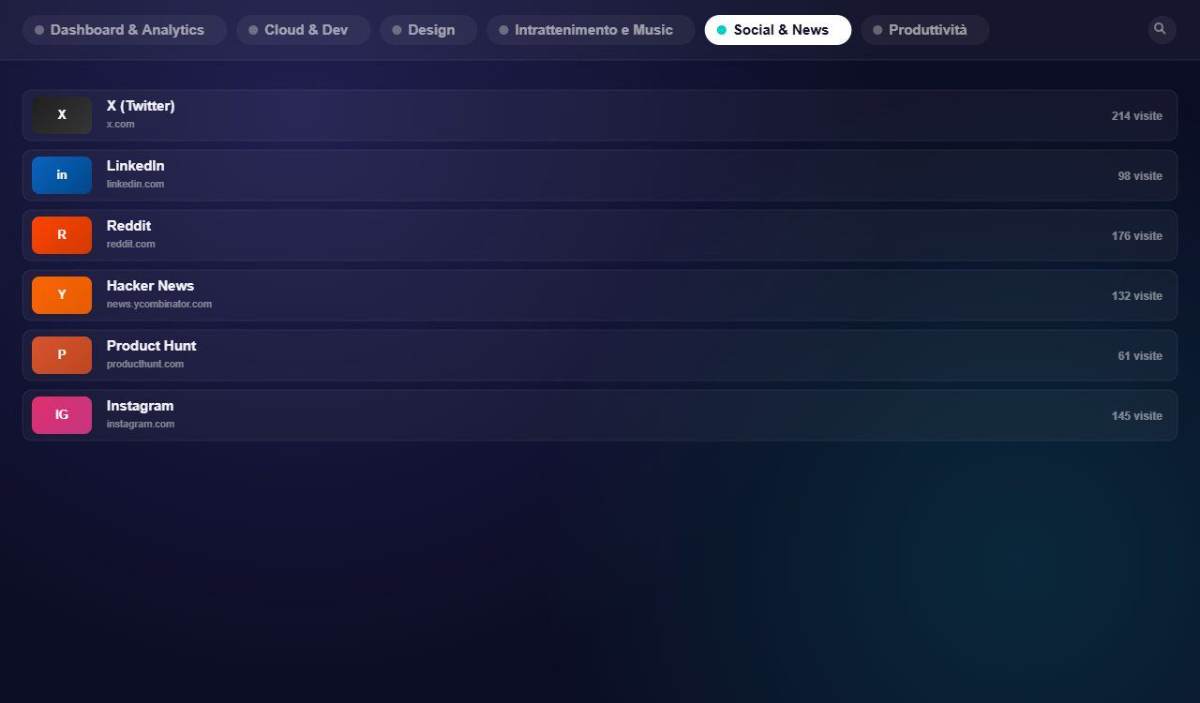
Layout & Griglia Responsive
Responsive Layout & Grid
La griglia dei segnalibri si adatta automaticamente alla larghezza dello schermo e offre 3 modalità di spaziatura.
The bookmark grid adapts automatically to screen width and offers 3 spacing modes.
Colonne automatiche
Auto columns
>1400px → 6 col · 1200–1400 → 5 · 900–1200 → 4 · 600–900 → 3 · <600 → 2
>1400px → 6 cols · 1200–1400 → 5 · 900–1200 → 4 · 600–900 → 3 · <600 → 2
Spaziatura
Spacing
Compact — 12px · Normal — 16px · Comfortable — 24px
Dimensione font
Font size
Small · Medium · Large — impostabile da Settingsconfigurable from Settings
Colonne fisso
Fixed columns
Puoi fissare il numero di colonne da Settings ignorando il responsive automatico.
You can fix the column count in Settings, overriding the auto-responsive behaviour.
Sfondo Personalizzato
Custom Background
Imposta un'immagine personalizzata come sfondo a tutto schermo, con controllo di opacità.
Set a custom image as a full-screen background, with opacity control.
URL immagine
Image URL
Inserisci un URL di immagine (JPEG, PNG, WebP) in Settings → Sfondo. L'immagine viene applicata in posizione fixed dietro il contenuto.
Enter an image URL (JPEG, PNG, WebP) in Settings → Background. The image is applied as a fixed background behind content.
Slider opacità
Opacity slider
Regola l'opacità dell'immagine da 0 (invisibile) a 1 (piena). Il gradient del tema rimane visibile sopra.
Adjust image opacity from 0 (invisible) to 1 (full). The theme gradient remains visible above it.
Screenshot & Thumbnail
Screenshots & Thumbnails
Atom Speed Dial Pro cattura automaticamente uno screenshot di ogni sito e lo usa come anteprima visiva della card.
Atom Speed Dial Pro automatically captures a screenshot of each site and uses it as the card's visual preview.
Cattura automatica
Automatic capture
Il Service Worker apre una finestra nascosta all'URL, attende il caricamento, cattura il viewport e salva uno screenshot JPEG 320×200 px.
The Service Worker opens a hidden window at the URL, waits for it to load, captures the viewport and saves a 320×200 px JPEG screenshot.
Auto-refresh
Auto-refresh
Se abilitato, il thumbnail viene aggiornato automaticamente quando è più vecchio di N giorni (configurabile: 1, 7, 30, 90, 180, 365 giorni).
If enabled, the thumbnail is automatically refreshed when it is older than N days (configurable: 1, 7, 30, 90, 180, 365 days).
Refresh manuale e bulk
Manual and bulk refresh
Da Settings → Thumbnails → Refresh All puoi aggiornare tutti gli screenshot. Un banner di progresso mostra lo stato (X/Y) con pulsante Stop.
From Settings → Thumbnails → Refresh All you can update all screenshots. A progress banner shows the status (X/Y) with a Stop button.
Import, Export e Migrazione
Import, Export and Migration
Backup completo dei tuoi dati, importazione da file JSON, lista URL, Chrome Bookmarks e Speed Dial 2.
Full data backup, import from JSON file, URL list, Chrome Bookmarks and Speed Dial 2.
Export JSON
JSON Export
Scarica un file speed-dial-backup-{timestamp}.json con tutti i dati: gruppi, segnalibri, profili e impostazioni.
Downloads a speed-dial-backup-{timestamp}.json file with all data: groups, bookmarks, profiles and settings.
Import nativo
Native import
Ripristina un backup nativo scegliendo tra sostituisci o unisci con i dati esistenti. Prima di un import che sostituisce, viene creato automaticamente un backup di sicurezza.
Restores a native backup, choosing between replace or merge with existing data. Before a replacing import, a safety backup is created automatically.
Import da formati esterni
Import from external formats
Il formato del file viene rilevato automaticamente (altri gestori di speed-dial/segnalibri) tramite un sistema di adattatori, senza dover scegliere manualmente il formato di origine.
The file format is detected automatically (other speed-dial/bookmark managers) through an adapter system, with no need to manually pick the source format.
Import da lista URL
Import from URL list
Incolla una lista di URL (uno per riga). Il sistema valida ogni URL, salta i duplicati e importa nel primo gruppo disponibile.
Paste a list of URLs (one per line). The system validates each URL, skips duplicates and imports into the first available group.
Import da Chrome Bookmarks
Import from Chrome Bookmarks
Legge il bookmark tree nativo di Chrome (cartelle → gruppi, sottocartelle → sottogruppi, link → segnalibri), con opzione di sostituire/unire e di rimuovere i link non più raggiungibili durante l'import.
Reads Chrome's native bookmark tree (folders → groups, subfolders → subgroups, links → bookmarks), with an option to replace/merge and to remove links that are no longer reachable during the import.
Migra da Speed Dial 2
Migrate from Speed Dial 2
Importa direttamente l'export JSON di Speed Dial 2. La struttura viene convertita automaticamente: cartelle → gruppi, link → segnalibri.
Directly imports a Speed Dial 2 JSON export. The structure is automatically converted: folders → groups, links → bookmarks.
Backup e Sincronizzazione su Google Drive
Google Drive Backup and Sync
Collega il tuo account Google per salvare i tuoi dati su Drive, sincronizzarli tra più computer e ripristinarli in caso di necessità.
Connect your Google account to save your data to Drive, keep it in sync across multiple computers, and restore it whenever you need.
Backup manuale e automatico
Manual and automatic backup
Usa il pulsante "Backup ora" quando vuoi, oppure abilita il backup giornaliero automatico. Ogni set di backup mantiene le 5 versioni più recenti; le più vecchie vengono eliminate automaticamente.
Use the "Backup now" button whenever you like, or enable automatic daily backups. Each backup set keeps the 5 most recent versions; older ones are removed automatically.
Sincronizzazione (Sync)
Synchronisation (Sync)
Un unico file sempre aggiornato per dataset, condiviso tra tutti i computer o account collegati allo stesso Google Drive.
A single, always-up-to-date file per dataset, shared across every computer or account connected to the same Google Drive.
Ripristino
Restore
Da Settings → Dati → Ripristina backup, scegli tra Sync (lo stato condiviso più recente) o Backup (uno snapshot storico tra gli ultimi 5), poi decidi se sostituire o unire con i dati locali.
From Settings → Data → Restore backup, choose between Sync (the most recent shared state) or Backup (a historical snapshot from the last 5), then decide whether to replace or merge with your local data.
Privacy e permessi
Privacy and permissions
Alla prima attivazione ti verrà chiesto il consenso Google (schermata OAuth). I dati vengono salvati in una cartella privata Drive (atom_speed_dial_bk) visibile solo all'estensione, grazie allo scope drive.file: nessun altro file del tuo Drive è accessibile.
On first activation you'll be asked for Google's consent (OAuth screen). Data is stored in a private Drive folder (atom_speed_dial_bk) visible only to the extension, thanks to the drive.file scope: no other file in your Drive is ever accessible.
Internazionalizzazione
Internationalisation
L'interfaccia è disponibile in Italiano e English. Il cambio è istantaneo senza ricaricare la pagina.
The interface is available in Italian and English. The switch is instant without reloading the page.
🇮🇹 Italiano
Lingua predefinita. Completamente tradotta incluse notifiche toast, modal di conferma e messaggi di errore.
Default language. Fully translated including toast notifications, confirmation modals and error messages.
🇬🇧 English
Lingua alternativa disponibile. Selezionabile da Settings → Lingua.
Alternative available language. Selectable from Settings → Language.
Requisiti Tecnici
Technical Requirements
TipoType
Chrome Extension — Manifest V3
Superfici UIUI Surfaces
Pagina Nuova Scheda + Popup ToolbarNew Tab Page + Toolbar Popup
PermessiPermissions
storage, bookmarks, history, sessions, tabs, favicon, activeTab, unlimitedStorage, windows, identity
Accesso GoogleGoogle Access
Host permission <all_urls>, usata per il blocco OAuth di backup/sync su Google Drive (scope drive.file — l'estensione vede solo i file che crea lei).
Host permission <all_urls>, used for the OAuth flow behind Google Drive backup/sync (scope drive.file — the extension only sees files it creates itself).
LingueLanguages
🇮🇹 Italiano · 🇬🇧 English